Best Android Battery Saver Settings for 2026
Best Android Battery Saver Settings for 2026
Android battery saver settings are not about using your phone with every useful feature turned off. The real goal is to keep the features you actually need during the day while reducing the habits and background processes that quietly drain power. In 2026, most Android phones now offer smarter battery management, adaptive charging, app-based restrictions, and advanced display options. Even so, two people using the same phone can get very different battery life, because the difference often comes from settings and usage habits rather than the processor itself.
The first place to check is Battery Saver mode. You will usually find it in Settings under Battery, Device Care, or a similar section. Instead of enabling it only when the phone drops to 10%, it makes more sense to set it to turn on automatically. For example, if you spend long hours outside during the day, you can set it to activate at around 25% or 30%. When Battery Saver is on, background activity is reduced, some visual effects are disabled, sync runs less often, and the phone becomes more conservative with power. If receiving notifications a few seconds later is not a problem, this is one of the settings that makes the clearest difference in daily use.
Adaptive Battery should stay enabled. Android learns which apps you use most over time and limits background activity for apps you rarely open. This is especially useful on phones with social media, shopping, gaming, banking, delivery tracking, and news apps installed. Some of these apps can wake the system for notifications, location, refresh tasks, or ad services even when you do not touch them. If Adaptive Battery is disabled, the phone gives every app more freedom, which can cost not just a few percentage points by the end of the day, but sometimes hours of battery life.
App-based battery usage should also be checked regularly. The Battery Usage screen in Settings shows consumption from the last 24 hours or the last few days. It is normal for the screen to appear near the top, but if an app you barely opened is high on the list, that is where the problem may be. On Android, you can usually manage an app’s battery use with options such as Unrestricted, Optimized, or Restricted. Restricting messaging, maps, or banking apps too aggressively can cause notification issues, but limiting rarely used shopping apps, games, browser add-ons, video editors, or promotional apps is usually safe.
Display settings are the biggest part of battery consumption. Keeping brightness high all the time drains the battery quickly, especially outdoors and on phones with OLED screens. If auto brightness works well, leave it on. If it does not, lower the brightness manually to a comfortable level. Setting screen timeout to 30 seconds or 1 minute is also a simple but effective move. When the phone sits on a desk with the display needlessly on, the battery drains without you noticing. The same principle applies on computers too; the basic idea in screen brightness settings in Windows 10 is similar: the more unnecessarily bright a screen is, the faster it uses power.
Dark theme is especially meaningful on phones with OLED and AMOLED displays. Since black pixels use less energy on these screens, dark theme can help during long reading sessions, messaging, and social media use, even if it does not work miracles in every app. You can use dark theme all day on Android, not just at night. Some people read more comfortably in light mode, and there is no need to force dark mode if that is the case. The best setting is the one that lets you lower brightness without straining your eyes. Dark theme alone will not transform battery life, but its effect becomes noticeable when combined with good brightness control.
Refresh rate is another setting that is often overlooked. Screens with 90 Hz, 120 Hz, or 144 Hz refresh rates make the phone feel smoother, but they can increase battery use. A high refresh rate feels great while gaming or scrolling quickly, but it is not always necessary for messaging, email, or reading on the web. If your phone has an Adaptive refresh rate option, leaving it on is a good balance. If you use a fixed 120 Hz mode and your battery does not last until the end of the day, switching to 60 Hz can be surprisingly effective. This setting shows results even faster on phones with aging batteries.
Location services can be a quiet culprit in battery drain. Maps, weather, taxi, delivery, and camera apps may need location access, but not every app needs it all the time. A good habit is to review app permissions on Android and change location access from “Allow all the time” to “Allow only while using the app.” Approximate location is also enough for many apps. A weather app may not need to know your exact street-level position. If you do not use options such as Location History, Bluetooth scanning, or Wi-Fi scanning, disabling them can provide small but lasting battery gains.
Wi-Fi, mobile data, and Bluetooth settings should be handled according to where you are using the phone. Keeping mobile data on while you have strong Wi-Fi at home or in the office is usually not a major issue. However, in areas with weak signal, the phone uses more power while searching for a cell tower. This is often why the battery drops quickly in the metro, basements, rural trips, or office corners with poor reception. If the signal is very weak, turning on airplane mode and using Wi-Fi may be the smarter choice. On the Bluetooth side, if you do not constantly use a smartwatch, headphones, or a car system, clearing unnecessary connections is a good idea.
Notifications create invisible battery traffic. Every notification wakes the screen, triggers the vibration motor, briefly activates the app, and distracts you. Thanks to Android notification channels, you can silence only campaign, recommendation, live stream, news, or marketing alerts without muting an app completely. This setting improves not only battery life but also mental clarity. On a phone that receives dozens of unnecessary notifications every day, battery saving stops being only a battery issue and starts improving the overall quality of use.
Sync settings can also be too aggressive. Gmail, calendar, notes, photos, cloud backup, and messaging services constantly try to stay up to date. If you need instant work email, leave your main account unrestricted, but review old accounts, unused cloud folders, and automatic photo uploads. Setting photo and video backups to run only on Wi-Fi and while charging can make a serious difference, especially for people who take a lot of photos. The same idea applies to computers; the maintenance habits explained in the Windows 11 errors guide are useful on Android too: it helps to know what your system is doing in the background.
Vibration and haptic feedback may seem minor, but they can activate hundreds of times a day. Keyboard vibration, gesture vibration, notification vibration, and call vibration can usually be configured separately. Turning off keyboard vibration is a good choice for both battery life and calmer phone use. If you use sound notifications, you can reduce vibration. If you keep your phone on silent, leaving vibration enabled only for important apps is a more balanced approach.
Games, camera apps, and video apps should be handled separately. When Battery Saver is on, gaming performance may drop, camera processing may slow down, or a music app running in the background may be closed more aggressively. That is why it is wrong to treat one setting as the best choice for everyone. A more flexible approach is to let Battery Saver turn on automatically for daily use, then temporarily disable it while gaming or recording long videos. Some phones also include resolution, frame rate, and performance profile options inside game mode. Choosing a balanced profile instead of maximum performance reduces heat, and as heat drops, the battery drains more slowly.
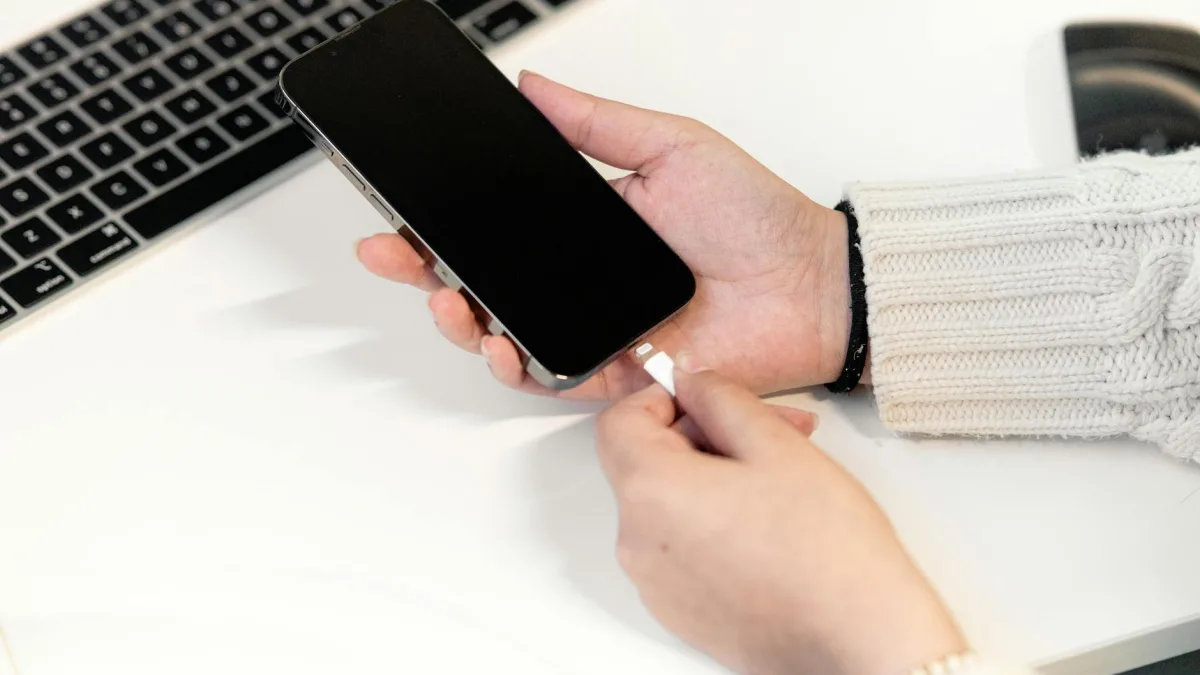
Charging habits directly affect battery health. Fully draining every phone to 0% and charging it back to 100% all the time is no longer considered a good routine. For daily use, staying between 20% and 80% is healthier for most lithium-ion batteries. If your phone offers a charge limit, adaptive charging, or overnight charging optimization, turn it on. These settings reduce the time your phone spends sitting at 100% until morning. Still, doing a full charge occasionally can help the battery percentage appear more accurate. The point is not to become obsessive, but to avoid habits that constantly heat the phone and wear out the battery.
Heat is one of the most practical but least discussed parts of battery saving. Leaving the phone in a car under the sun, fast charging it with a thick case on, gaming while charging, or using the camera for long periods can stress the battery. No matter how well you adjust battery settings, if the phone heats up often, the charge will drop faster. Fast charging is very convenient, but it is not always necessary. Using a lower-power adapter overnight or removing the case while charging can be gentler on battery health.
Android updates should not be ignored either. Manufacturers occasionally release fixes related to battery consumption, modem behavior, screen brightness, app compatibility, and security patches. After an update, battery use may temporarily increase for the first day or two because system files are reorganized, apps are optimized, and indexing takes place. This is not an immediate reason to panic. However, if heavy drain lasts longer than a week, you should use the Battery Usage screen to find the problematic app. If you care about system maintenance, the post-installation checklist approach in Ubuntu 26.04 LTS: 10 settings to configure after installation follows a similar habit that also applies to Android: do not accept every default setting blindly after getting a device.
The best practical combination is simple: keep Adaptive Battery on, set Battery Saver to activate automatically around 25%, use a short screen timeout, keep brightness reasonable, enable dark theme, disable unnecessary location permissions, and control apps running in the background. Add cleaner notifications and smarter charging habits, and your Android phone’s battery life can noticeably recover. Instead of pushing every setting to the strictest level, choose the options that do not disrupt your day. When battery saving is done well, the phone heats up less, interrupts you less, and is less likely to leave you searching for a charger at the end of the day.